.png?width=150&height=39&name=Logo%20FormPiper%20Horizontal%20Full%20Color%20(1).png)
Quick Links
- A lender won't pipe or is getting stuck
- The wrong values are being entered in forms
- My Chrome extension isn’t showing my list of lenders or customer forms
- Why won’t FormPiper log into my lender?
- Why aren’t my lender applications filling in the correct information that was entered on the FormPiper form?
- Why aren’t my lender portals loading completely or timing out?
- I don’t see one of my lenders in the dropdown- how do I add it?
- How do I cancel?
- Is my data and my customers’ data protected?
- I opened up my chrome extension and none of my forms are showing?
- Clearing FormPiper web app cache and ONLY FormPiper cache
- How to integrating with Shopwindow
A lender won't pipe or is getting stuck
If your computer is sluggish or the internet isn't great, a pipe can sometimes stall. If this happens, right click on the Form Piper extension icon in the upper right-hand corner and select "Options". Once in options, click on "Pipe one at a time" so that the toggle becomes blue.
This will adjust Form Piper to handle slower computers and/or internet speeds. If it still doesn't work, send us a support ticket as a lender website might have changed.
The wrong values are being entered in forms
If this happens, please submit a support ticket and include the Lender name and first and last name of the applicant whose form you are piping.
My Chrome extension isn’t showing my list of lenders or customer forms
To connect your online dashboard to your Chrome extension, you need to link the two platforms with an API key.
Steps:
-
Set up API token by navigating through online portal: Dashboard > View Settings > API
-
Create Token Name – any name will work.
-
Copy key by clicking Copy To Clipboard.
-
Right-click Chrome extension icon and click Options.
-
Paste the key in API Key field.
-
Click Save API.
-
You’re all set! Time to start filling forms.
Why won’t FormPiper log into my lender?
If it’s trying to log in, but says you’re entering invalid credentials, then you need to update your credentials in FormPiper under Dashboard > Settings > Lender Credentials. Select the lender you’d like to update and Edit accordingly. Try testing your credentials by logging into the lender portal directly outside of FormPiper, and if it works, then contact technical support by submitting a Support ticket from your online Dashboard.
Why aren’t my lender applications filling in the correct information that was entered on the FormPiper form?
This could be human error or a technical issue. First, double-check your form to ensure all information has been entered in the appropriate format. If it has, then contact technical support by submitting a Support ticket from your online Dashboard.
Why aren’t my lender portals loading completely or timing out?
Check your internet connection. You can turn on “Pipe One At a Time”, as that will accommodate a slower connection. To do so, right-click the Chrome extension, select Options and toggle button on. You can also contact technical support by submitting a Support ticket from your online Dashboard.
Can I put the FormPiper Chrome extension on multiple computers?
Yes, you can download the Chrome extension to unlimited computers allowing you to process customer forms on unlimited computers.
I don’t see one of my lenders in the dropdown- how do I add it?
Let us know which lender you need and we’ll add it! The application must be accessible online.
How do I cancel?
You can cancel through your online dashboard. Go to Settings > Subscription > Cancel Subscription. Your account will close out at the end of your current pay cycle.
Is my data and my customers’ data protected?
Yes! We use 128-bit encryption technology to protect your username, password and other personal account information when you’re using our site. You’ll know your information is encrypted when the formpiper.com page you’re on starts with “https://” and you see a lock symbol in your web browser.
Forms not populating in my Chrome Extension
In some cases, your API token can be deleted from your chrome extension. If this happens, you won't be able to see your forms and use FormPiper. If you experience this issue, please check that you still have your API token saved by going to your FormPiper Chrome Extension settings and checking Extension Options.
If there is no API token there, create a new one and add it. You should be all set.
Clearing FormPiper web app cache
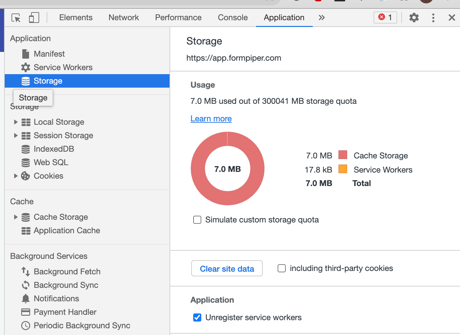
If your FormPiper website isn't behaving properly, sometimes it helps to clear the cache, but clearing your browser cache can delete all of your other site information, which can be a pain. Here is how you clear FormPiper's cache and only FormPipers.
- Right click anywhere on FormPiper page
- Select “Inspect”
- Select “Application”
- Select “Storage” on the left-hand panel
- “Clear site data”
Have more questions?
Email info@formpiper.com with any questions you might have.
Integrating with Shopwindow
To integrate your Shopwindow account with FormPiper, we'll need three pieces of information:
- Your Shopwindow URL
- Your user id
- Your Shopwindow API token
How to get your Shopwindow URL:
- Log into your Shopwindow account
- Once logged in, grab the URL at the top of your browser
- it should look something like "https://kennesaw.shopwindow.io"

- it should look something like "https://kennesaw.shopwindow.io"
How to get your Shopwindow User ID and API Token:
- Log into your Shopwindow account
- Click on "Settings" and then "Setup"
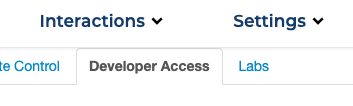
- Once in the settings page, click on "Developer Access"
- Click on "Generate API Token"
- Follow the prompts until you are presented with your API token. It will look like this:
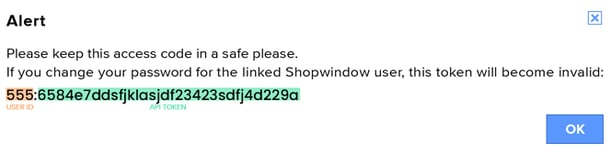
IMPORTANT: include the entire thing (user_id and api token).
NOTE: If you update your Shopwindow password, you'll have to create a new API token and re-renter it into FormPiper.